
WhatsApp Profile Picture Checker: Analyzing the Public Avatar Behind a Business Contact
How a WhatsApp profile picture checker reads a public avatar, what no avatar and undetermined mean, and when to use single, multi or bulk checks.
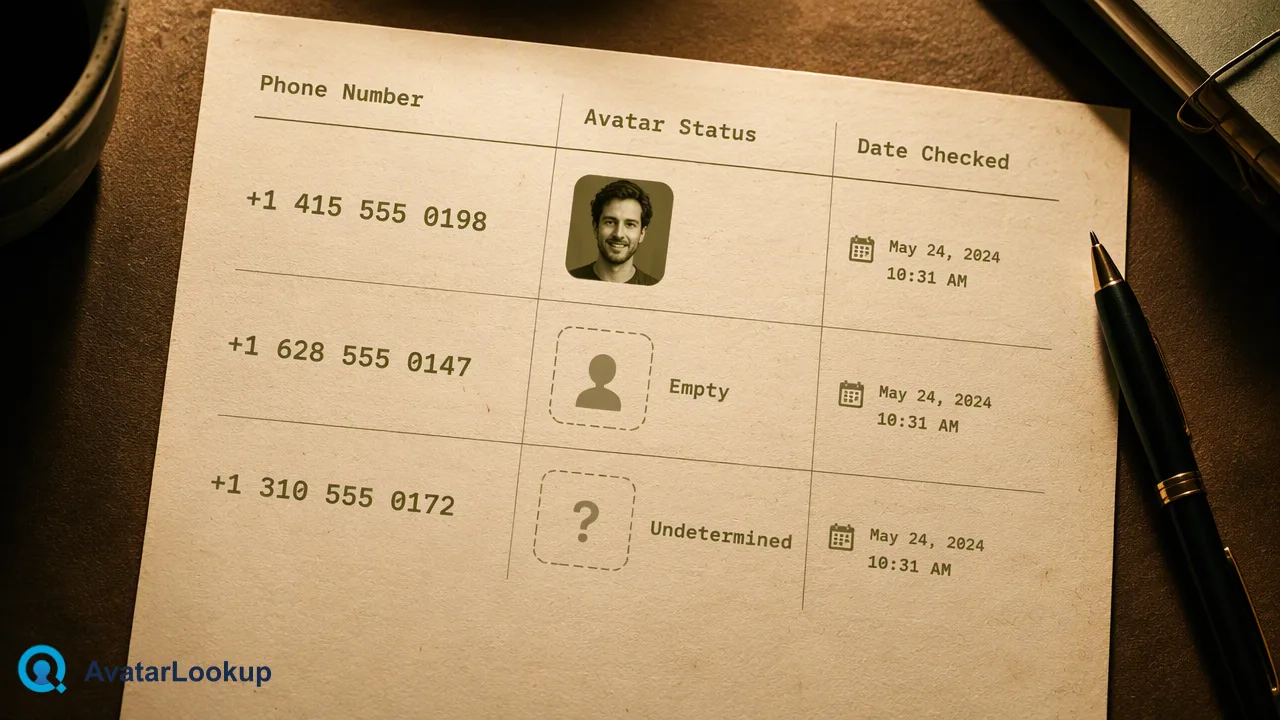
A practical guide to checking the public WhatsApp avatar behind a business contact number and reading the result without overclaiming.
A WhatsApp profile picture checker looks at the public avatar shown for a phone number and describes it. With AvatarLookup, a realtime single check returns whether a public picture was available and, when it was, the picture type plus estimated age, gender, hair and skin colour. Those appearance values are algorithmic estimates, not facts about a person. If you already hold the picture itself, image profile analysis is the more direct route; the WhatsApp check is for the case where all you have is a number. A missing avatar and an undetermined check are separate outcomes, and neither one proves that the number has no WhatsApp account.
What a WhatsApp profile picture checker actually returns
Most pages ranking for this search describe free lookup boxes that show you the photo and stop there. For contact-data work, the photo alone is rarely the useful part. What helps a team is a short, consistent description of the picture that can sit next to a record.
An AvatarLookup WhatsApp check describes the public avatar in plain categories:
- Availability – whether a public avatar was shown for the number at the time of the check.
- Picture type – for example a photo of a person, a logo, an illustration or another kind of image.
- Appearance estimates – estimated age, gender, hair colour and skin colour when the picture shows a person.
The check reads only what WhatsApp shows publicly. It does not open chats, contacts, status updates or any private profile data. The appearance values are produced by a model looking at one small image, so treat them as descriptive estimates that can help you sort and review records, not as attributes of the account holder.
Start with the picture you already have
Many teams already store avatars or profile photos from earlier exports, forms or support tickets. When the image itself is on file, run image profile analysis on that file instead of looking the number up again.
Image profile analysis is synchronous and accepts JPEG, PNG, WebP or GIF files within the documented size limit. On the website you upload the file; developers send the same file as a multipart file upload to the documented image profile endpoint. The result describes the picture: its type and, for a person, the same kind of appearance estimates as the WhatsApp route.
One detail matters for record keeping. The identifier attached to an image result is a fingerprint derived from the image content, not a phone number or account. Store it as a reference to that picture, and keep the link to your contact record in your own system.
Use the WhatsApp route only when the number is the only thing you hold, or when you want to describe the avatar currently shown for it.
How to run a WhatsApp profile picture check for one number
A realtime single check is the simplest way to look at one contact.
- Normalize the number. Write it in international form with the country code, and remove spaces, brackets and leading zeros that belong to local dialing.
- Run the check. Enter the number in the dashboard, or send it to
POST /api/v1/checkwith the WhatsApp avatar service selected. The API documentation lists the exact request format. - Read the outcome first. Before looking at any appearance values, note whether the result shows an available avatar, no public avatar, or an undetermined check.
- Record the date. People change their pictures. A note such as "avatar checked 2026-10-20" keeps an old result from looking current.
Mainland China (+86), Hong Kong (+852) and Macau (+853) numbers can be checked this way, one number at a time. They are not accepted in bulk tasks, so keep them in a separate list if your file mixes regions.
Reading the result: avatar, no avatar, undetermined
The three outcomes call for different actions, so keep them in separate fields rather than one yes/no column.
| Outcome | What it means | Suggested handling |
|---|---|---|
| Avatar available | A public picture was shown and described | Store the picture type and estimates with the check date |
| No public avatar | The check completed but no public picture was shown | Leave avatar fields empty; do not change account status |
| Undetermined | The check could not reach a result | Re-check later; do not treat it as a negative |
A missing public avatar has ordinary explanations. WhatsApp's privacy settings let each user show the profile photo to everyone, to contacts only, to contacts with exceptions, or to nobody. Someone who limits the photo to contacts, or who has never set one, will look the same to a public check. That is why "no public avatar" says nothing about whether the account exists or whether the person is reachable.
Checking several numbers: multi check or bulk task
When the list grows beyond a handful of numbers, pick the mode by size and urgency.
- Synchronous multi check. The API accepts between 1 and 100 identifiers of one service type per request at
POST /api/v1/batch-checkand returns results in the same order as the input. The dashboard accepts a longer pasted list and processes it one number at a time. - Asynchronous bulk task. For large files, submit a TXT or CSV with one number per line to
POST /api/v1/bulk-tasks, choose one country, and write numbers as country-coded digits with no plus sign. You get a task you can poll withGET /api/v1/bulk-tasks/{id}; poll no more than once every 30 seconds, and download the single CSV when the task succeeds. Per-product minimums and file limits apply, so check the API documentation before you build the file.
In a multi response, a positive result flag only means a result was produced for that row. A negative flag means the row was invalid, undetermined or failed, not that the number lacks an account or an avatar.
Using WhatsApp avatar outputs responsibly
Avatar outputs work best as light context for list hygiene, not as a basis for decisions about people.
Good uses include spotting records whose public picture is a company logo when you expected a personal contact, grouping records with no public avatar for a softer re-confirmation step, or flagging duplicates where two records show the same kind of picture.
Avoid using estimated age, gender or skin colour to approve, reject, price or prioritize anyone. Independent testing such as NIST's Face Analysis Technology Evaluation shows that age estimates vary with image quality, age group and other factors, and a small chat avatar is often a low-quality image. Keep appearance fields out of eligibility rules, limit who can see them, and delete them when the contact record no longer needs them.
Finally, write down the source and date with every value, for example "WhatsApp public avatar, analyzed 2026-10-20". That one habit keeps an estimate from quietly turning into a fact in a CRM.
FAQ
Can a WhatsApp profile picture checker see a photo that is limited to contacts?
No. The check reads only the avatar WhatsApp shows publicly for the number. If the owner limits the photo to contacts, excludes certain people or hides it from everyone, the check will usually report no public avatar. That outcome reflects the visibility setting at the time of the check and does not reveal the hidden picture or anything else about the account.
How should teams store estimated age and gender from an avatar?
Store them as labeled estimates next to the source and check date, in fields that are clearly separate from customer-provided data. Restrict who can see them, keep them out of eligibility or pricing rules, and set a retention period. If a customer supplies their own details, the supplied values should replace any estimate rather than sit beside it as a competing fact.
Can Telegram or Viber numbers be checked in realtime the same way?
Realtime single and synchronous multi checks are documented for WhatsApp and supported email addresses only. Telegram, Viber, MAX, LINE and Zalo avatar analysis runs as separate bulk products, each with its own file rules and its own result columns. Plan those sources as asynchronous tasks and read each product's CSV on its own terms rather than assuming it matches the WhatsApp output.
Learn More
Choose the product information that fits the next step in your workflow.