
Bulk Email Avatar Check: Prepare the File and Read the CSV
Prepare a supported-email TXT or CSV, submit an asynchronous avatar task, and interpret identifier, activated, avatar and avatar_url carefully.
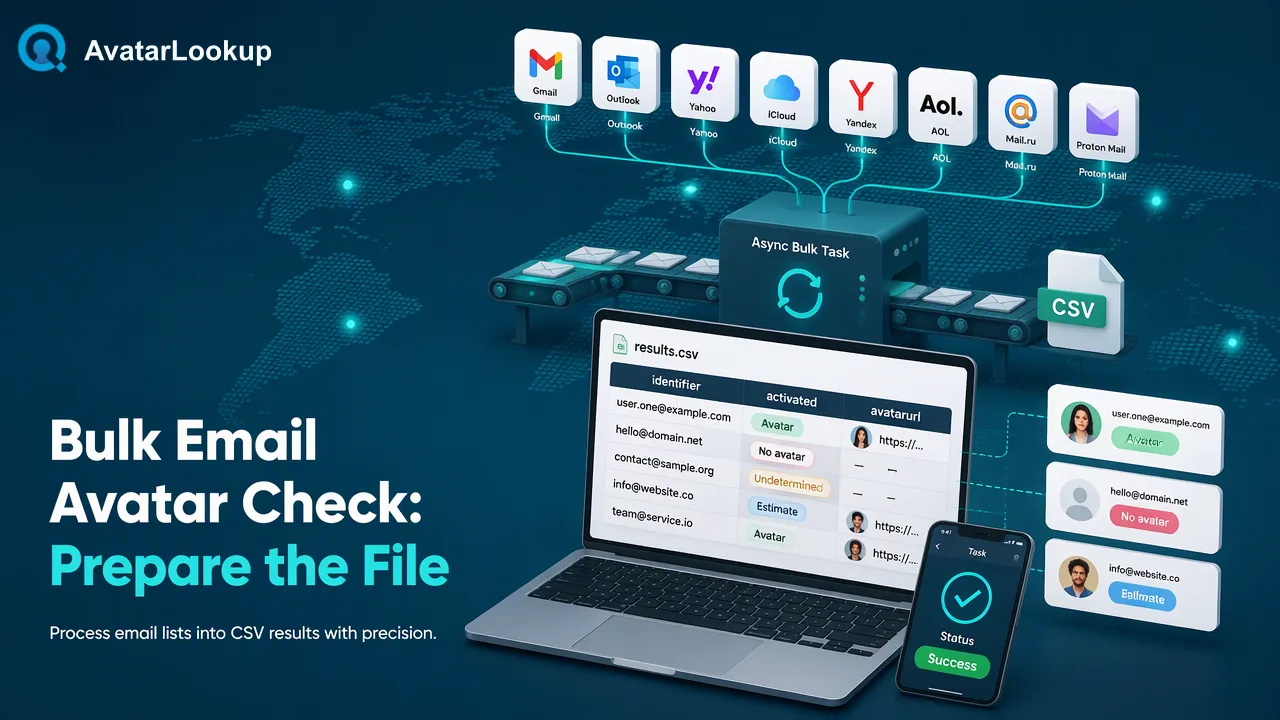
A bulk email avatar task returns source-specific CSV observations after an asynchronous run.
A bulk email avatar check starts with a TXT or CSV file containing one supported Gmail, Yandex or Mail.ru address per line. AvatarLookup’s email avatar bulk product runs asynchronously: submit the file, check the task status, then download one CSV when it succeeds. The CSV contains identifier, activated, avatar and avatar_url. Read each field in the context of this email product, and never turn an empty avatar URL into a claim about the mailbox or person.
Prepare a clean file of supported email addresses
Begin with a list the organization is authorized to process. Keep one email address per line in TXT or CSV. Filter to the documented Gmail, Yandex and Mail.ru domain families; AvatarLookup’s product documentation provides the current supported scope and input rules. Preserve a copy of the original list with an internal record key so a downloaded result can be joined to the correct contact record later.
Normalize accidental leading or trailing spaces and flag malformed addresses before uploading. A second pass should find duplicates so the team understands whether a repeated address represents one contact or several records. Do not assume that a CSV spreadsheet export is automatically suitable: inspect the actual file and keep the identifier field in the expected one-per-line form. XLSX is not an accepted bulk upload format.
Email tasks do not use a country field. That distinction matters when a team also runs phone-based bulk products with different input requirements. Keep the product selection and file name explicit in the work log; an email file sent under a phone product would not be a meaningful avatar check. Confirm the selected product’s current minimum, maximum and file rules in the API documentation rather than carrying an old limit into an operational run.
Submit, monitor and download the task
The documented bulk-task endpoint is POST /api/v1/bulk-tasks. A successful submission starts an asynchronous task and gives the team a reference to query. Use GET /api/v1/bulk-tasks/{id} to check its status; the product documentation says not to poll more often than every 30 seconds. When the task succeeds, download the result CSV from the provided link. If the link is no longer available, query the same task for a refreshed link under the documented behavior.
Do not treat acceptance of an upload as completion of the checks. A task can remain in progress or fail. A simple operations sheet can record the input file version, selected email bulk product, submission time, task reference, last observed status and whether the CSV was downloaded. The status, not elapsed wall time, determines whether the team has a completed dataset.
Store the CSV with the task record so another teammate can audit which input produced it. If the downloaded row count differs from the prepared input count, investigate before merging observations into a CRM. Keep errors and undetermined outcomes separate from completed rows. The product’s bulk workflow has its own fields and result semantics, so do not paste assumptions from a WhatsApp or Telegram bulk article into this email task.
Read the four email bulk CSV columns
The email avatar bulk CSV has four documented columns: identifier, activated, avatar and avatar_url. Identifier ties the row to the submitted email address. Activated is the service’s account-presence field for this email product. Avatar records the product’s public-avatar signal, and avatar_url is the related image location when available. AvatarLookup’s official resources should be used for the current field definitions and any updated examples.
| Column | Review question | Safe interpretation |
|---|---|---|
| identifier | Which submitted address is this row about? | Match it back to the prepared list |
| activated | What account-presence signal was returned? | Treat it as source-specific, not person verification |
| avatar | Was public-avatar availability reported? | Keep it distinct from mailbox status |
| avatar_url | Was an image location provided? | Empty is not proof that no avatar exists |
An empty avatar_url is especially easy to misread. It does not by itself establish that the email address is invalid, that no mailbox exists, or even that the person has no picture. Visibility and source behavior limit what can be observed. Google’s profile-sharing guidance illustrates that users control aspects of profile discovery and photo visibility. A reviewer should use the actual product result and the time of the check, not a story invented from a blank cell.
Turn the CSV into a careful contact-data update
Before importing results, decide which columns may update the contact system and which should remain in an audit view. The identifier should match a known record key; an available public image may be considered only under the organization’s data-handling rules. An absent or undetermined image result should not erase a customer-provided photo. A conflict between a public image and an existing record should go to review rather than automatic replacement.
Inspect a sample of rows with an available image, rows without one and rows needing investigation. Confirm that source labels, check date and task reference remain attached to the observations. This makes it possible to revisit a questionable result without treating an old CSV as permanent truth. Public profile information can change, so a later check may differ from the file’s snapshot.
Finally, report the run in operational terms: how many prepared addresses were eligible, how many rows appeared in the successful CSV, and which rows need follow-up. Do not report “people verified” or “real accounts confirmed.” The task supplies limited public-avatar and account-presence context for supported email sources. Its value is a clearer contact-data workflow with explicit unknowns.
FAQ
How can teams format the bulk email avatar input?
Use TXT or CSV with one supported email address per line, and follow the current product-specific count and file rules.
How can teams know when results are ready?
Query the task status at the documented interval and download the CSV only after the task succeeds.
How can teams interpret a blank avatar_url cell?
It means no URL is available in that row; it is not proof of no mailbox, no account or no public picture.
How can teams join results to contact records?
Match identifier to the prepared input and retain the task reference and check time before applying an authorized data update.
Learn More
Choose the product information that fits the next step in your workflow.