
Reverse Image Search vs Profile Picture Analysis: Which Tool Answers Your Question
Compare a reverse image search of a profile picture with profile picture analysis, and pick the right tool for contact-data review tasks.
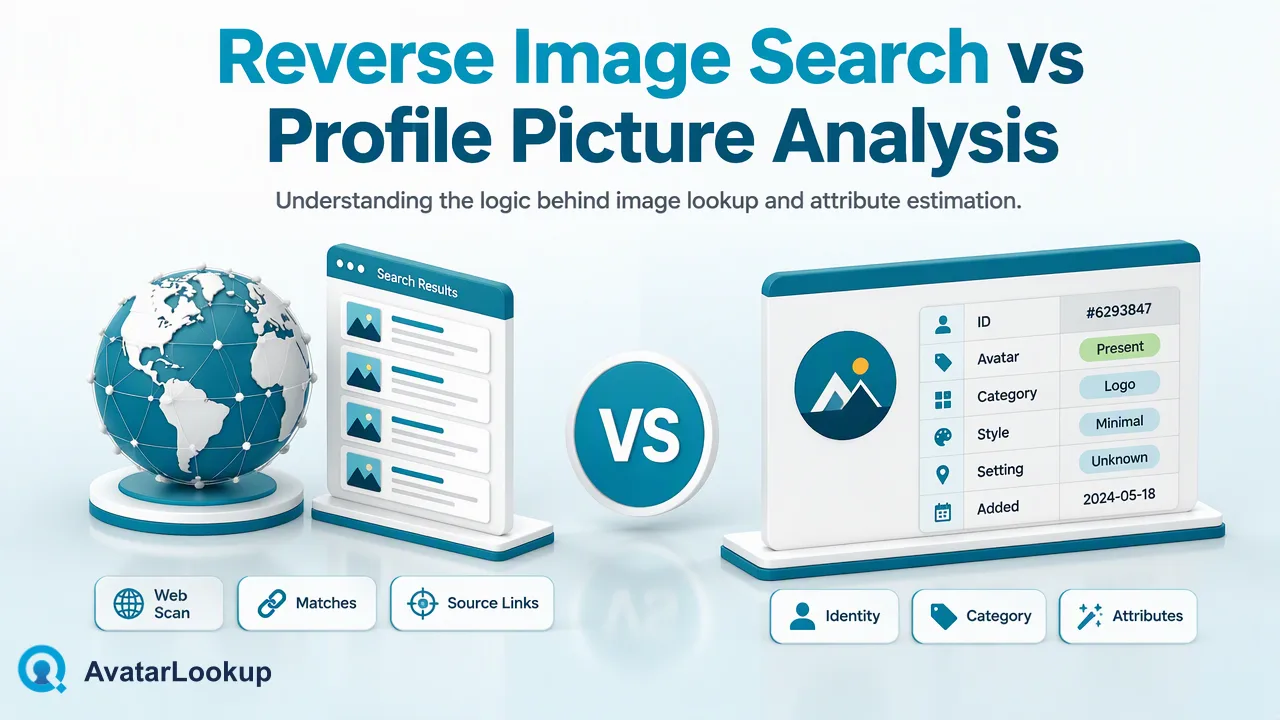
Reverse image search finds where a profile picture appears online; profile picture analysis describes what the picture shows. This guide explains when each one fits.
A reverse image search of a profile picture tells you where that picture, or a similar one, appears on the web. Profile picture analysis answers a different question: what kind of picture it is and what it appears to show, such as picture type, an estimated gender, an age estimate, and hair and skin colour. Use a reverse image search when you need to know whether a photo is reused, such as a stock image or a copy taken from another page. Use profile picture analysis when a contact-data team needs consistent, structured attributes for many records. Neither result proves who a person is.
What a reverse image search of a profile picture actually finds
Search engines such as Google, Bing, Yandex, and TinEye let you upload a picture or paste its address and then compare it with images they have indexed. Google's help page for searching with an image describes the main inputs: upload a file, drag an image into the search box, or paste an image URL. Results can include similar images, information about objects in the picture, and websites that show the same or a similar image.
For a profile picture, that output answers questions like these:
- Is this picture published elsewhere, for example on a stock photo site?
- Has the same picture been used on several unrelated pages?
- Is there an older or larger copy of the image online?
The limits follow from how it works. A reverse search only finds pictures that are public and indexed. A common or heavily cropped image can return many loose matches, and a private or newly uploaded photo may return nothing at all. An empty result means the engine found no match, not that the picture is original.
What profile picture analysis returns instead
Profile picture analysis looks inside the picture rather than across the web. AvatarLookup image profile analysis accepts an uploaded JPEG, PNG, WebP, or GIF image, or a public https URL in the dashboard, and returns a short set of attributes:
- Picture type, which separates photos of people from pets, cartoons, logos, and objects.
- Estimated gender and an age estimate for the apparent subject.
- Hair colour and skin colour estimates.
These are algorithmic estimates of appearance. They do not depend on the picture being published anywhere, so they work for images that a reverse search cannot match.
When a record holds an identifier instead of an image, a related route applies. WhatsApp avatar analysis and email avatar analysis for supported Gmail, Yandex, and Mail.ru addresses analyze the public avatar behind that identifier. If the account has no public avatar, or the check is undetermined, those are separate outcomes, and neither means the account does not exist.
Reverse image search vs profile picture analysis side by side
The two tools are often described as interchangeable. They are not, and the difference shows up clearly in a table:
| Question | Reverse image search | Profile picture analysis |
|---|---|---|
| What does it answer? | Where else the picture appears | What the picture shows |
| Does the picture need to be online? | Yes, and indexed | No, a file upload works |
| Typical output | Links, similar images, page titles | Picture type and appearance estimates |
| Consistent fields for many records? | No, results are free-form pages | Yes, the same attribute set each time |
| Works on a logo or cartoon? | Yes, it may find the source | Yes, picture type labels it |
| Good for spotting reused stock photos? | Yes | No |
| Good for sorting a contact list? | Hard to automate | Yes |
A practical rule: if the question includes the word where, start with reverse image search. If it includes what kind or how many of our records, start with analysis. Some reviews use both, one after the other.
Choosing the right tool for contact-data workflows
Contact-data teams usually arrive at this comparison with a concrete task. Matching the task to the tool saves time:
- Cleaning placeholder pictures. A CRM import is full of default silhouettes, company logos, and blank images. Profile picture analysis labels picture type for every record, so the team can filter logos and non-person images in one pass.
- Reviewing a few suspicious records by hand. A reviewer wants to know whether a seller or partner profile uses a widely published photo. A reverse image search on each picture is the right first step.
- Summarizing a list. A team wants to know what share of records carry a personal photo versus a brand mark. Analysis produces consistent fields that can be counted.
- Checking numbers or addresses without pictures. If the record only has a WhatsApp number or a supported email address, an identifier check analyzes the public avatar behind it.
For any of these, treat the output as one input to a human review. Neither a reverse match nor an appearance estimate establishes identity, ownership, or intent, so the final call stays with the reviewer and the other data on the record.
Privacy and handling practices for both methods
Both methods send a picture to a third-party service, so a few habits help:
- Read the tool's data terms. Google notes in its help page that it may store image URLs you search to improve its products. Check the equivalent terms of any service you use, including AvatarLookup.
- Use public or provided pictures only. Work with images a user supplied to you or that are publicly visible; do not attempt to obtain private profile pictures.
- Store less. Keep the attribute or the match summary you need, plus the date, rather than full result pages or copies of other sites' images.
- Label estimates. Store appearance attributes in fields named as estimates, and keep them out of eligibility, pricing, hiring, or other high-impact decisions about people.
- Document the purpose. A short note on why the team runs the check makes later audits and privacy reviews easier.
These habits keep both tools in their proper role: helping a team review and organize records, not building profiles of individuals.
FAQ
How can teams tell whether a profile picture is a stock photo?
Run a reverse image search with Google Lens, Bing, Yandex, or TinEye and look for matches on stock photo sites or many unrelated pages. A match is a signal worth reviewing, not a verdict, because people sometimes use licensed images legitimately. No match only means the engine found no indexed copy. Profile picture analysis does not answer this question, since it describes the picture rather than where it appears.
How should teams handle a profile picture that shows a logo or cartoon?
Treat it as a determined result. Profile picture analysis labels the picture type, so a logo or cartoon can be filtered or tagged without guessing. Person-specific estimates may be unknown in that case, and the result is still a completed analysis. For brand-led contact lists, these records are often the ones worth sorting first, because they usually represent company accounts rather than individual contacts.
How can teams combine both methods in one review?
Use analysis first to sort a large list, because it returns the same attribute set for every picture and is easy to filter. Then run reverse image searches on the smaller set of records that need a closer look, such as profiles under manual review. Record which method produced each note, so reviewers can weigh a web match and an appearance estimate as two different kinds of evidence.
Learn More
Choose the product information that fits the next step in your workflow.